
I’ve decided that I will turn much of my immediate attention to references first. This is in part because I hope to insert links to “Reference Pages” (similar to Attachment Pages in concept) in the place of citations and footnotes references.
As mentioned in an earlier post, Wandering Academic that suggested creating a post for each reference. This great because it treats each reference as a discrete entity of the website’s organizational structure, allowing it to be featured in several ways. A site user could sort through all the references that talk about the history of Woodlawn.
The puzzle I face, however, with this section is how to convert my references in Zotero into individual posts with as little effort as possible.
Structured Data to Evernote
Originally, I primarily explored the idea of standardizing bibliographic entries, in technical terms inserting “structured data” into Evernote. Looking for a solution, I uncovered KustomNote, which provides a add-on to Evernote that can data collected in forms. A promising approach, yet there were three drawbacks. First, because I could not seem to find a way of inputting spreadsheet data into this software, it would require manual entry of all of my bibliographic entries. Second, closely related, there seemed to be no database that maintained the data entered, which would allow
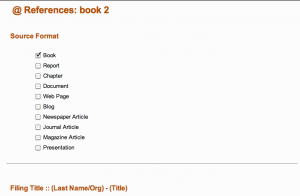
Most minimalist format for KustomNote’s Entries
changes and updates. Third, I also didn’t like that I could not change any of the formatting of the posts. The most minimalist form was still pretty space inefficient.
As a result, I kept looking for a solution.
Excel Mail Merge Catalog and Applescript Parsing
The next solution was much more technical. I realized that if I could create one document with all the content (something I knew I could do from mail merge and used in analyzing my interview data) I could try to find an Apple Automator approach to splitting up this text into additional documents. I’d started using Automator recently when I learned it could change file names for a lot of pictures.
Turns out that AppleScript was the better tool for this, but fortunately, I was able to find a forum that provided code to split text documents up based on a user-specified delimiter. By making a few modifications to the code, it worked on the first try and split up a text document generated from a Mail Merge into 3 files. I won’t describe Mail Merge function in detail here, but basically it takes an Excel document (a database) and lets you put placeholders for a column in the manner as a form letter and then goes down each row, inputting the data for that row where you see placeholders and repeating the same text with customized data. By putting “End Source” at the bottom of each set of placeholders in Mail Merge and as my delimiter in the code below, I can run the code below in Automator and it splits a text document into multiple documents in a folder of choosing. It may be possible to have it pluck a title from the file (ideally would be “Author – Title”), but for the 5-10 minutes it took to find and modify this code…I figured I’d quit while I was ahead!
The code (green underline indicates the marker for splitting documents up and the name of the resulting documents):
set f to choose file with prompt "Choose the file to parse."
set fold to (choose folder with prompt "Choose a folder to store the files in.") as text

tell application "Finder"
	set fName to name of f
end tell

set fp to open for access f
set bigText to read fp
close access fp

set parsingText to "End Source"
set parsedList to tid(bigText, parsingText)
repeat with i from 1 to count of parsedList
	set newFName to "Source_Summary_" & i
	set fp to open for access (fold & newFName) with write permission
	-- uncomment the following line if you need to overwrite old files, otherwise it will append
	-- set EOF of fp to 0
	write ((item i of parsedList & parsingText) as text) to fp
	close access fp
end repeat

on tid(input, delim)
	-- a subroutine to handle text item delimiters. Useful tool, but so danged wordy.--
	set {oldTID, my text item delimiters} to {my text item delimiters, delim}
	if class of input is list then
		set output to input as text
	else
		set output to text items of input
	end if
	set my text item delimiters to oldTID
	return output
end tid
Remaining Question: Conversion of Zotero to Excel or Comma Separated File
The remaining step is to figure out how to export my Zotero data to spreadsheet form. I figured this was the simplest step (in terms of accessibility of a work-around), and indeed the first link in a Google Search gives instruction for using Firefox’s SQLite Manager to run a SQL query on my Zotero database and return a CSV of the data. When I look at such a task and consider it straightforward, I can only be grateful for the role that data has in MIT’s planning program and, in particular, Joe Ferreira for schooling me on SQL and relational database management in 11.521.
How it All Fits Together
This summarizes how this will work together:
- Export Zotero Database as CSV
- Save CSV in Excel
- Create a Mail Merge in Word that uses the Zotero database.
- Create Template approximating the following:
- Author: <<author-field>>
- Title: <<title-field>>
- Cited in Thesis
- Bibliography
- End Source
- Generate new document from Mail Merge Template and save it as a .TXT or .RTF
- Run Applescript tool to split it up into one file per Bibliographic entry
- Import references into Evernote, specifically into References Notebook
- Appropriately tag each reference to reflect the topics addressed (though will probably have to be repeated in WordPress)
- Export Notes into HTML
- Import into WordPress
You must be logged in to post a comment.